


Set up your HomePride Bank debit card in Apple Pay or Google Wallet to tap and pay quickly and securely with your smartphone or smartwatch. This page walks you through what you need, how to add your card, and what to do if something goes wrong.
What you need first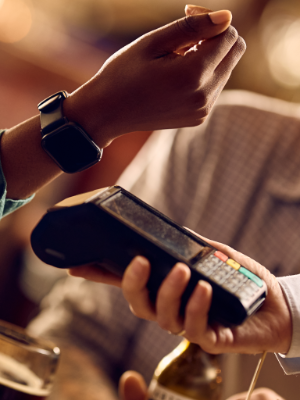
- An active HomePride Bank debit card in good standing.
- A compatible device:
- Apple Pay: iPhone, Apple Watch, iPad, or Mac that supports Wallet.
- Google Wallet: Android phone or smartwatch with Google Wallet/Google Pay support.
- An Apple ID or Google account signed in on the device.
- Screen lock turned on (Face ID, Touch ID, passcode, PIN, pattern, or similar).
- A Wi‑Fi or mobile data connection.
Tip: Digital wallets work anywhere you see the contactless “tap to pay” symbol or the Apple Pay / Google Pay logo at checkout.
How to add your card to Apple Pay
Follow these steps on your iPhone; the process is similar on other Apple devices.
- Open Wallet
- Unlock your iPhone.
- Open the Wallet app (preinstalled on iPhone).
- Start adding your card
- Tap the “+” or “Add” button.
- Choose “Debit or Credit Card”.
- Note: If your iPhone supports it, you may also be prompted to simply hold your HomePride debit card near the top of your iPhone to add it using tap‑to‑add, instead of typing or scanning the card.
- Enter card details
- Hold your HomePride debit card so the camera can scan it or choose to enter details manually.
- Confirm the card number, expiration date, and security code match your physical card.
- Agree and verify
- Review and accept the terms presented for using your card with Apple Pay.
- Choose a verification method if asked (for example, text message or email) and enter the one-time code sent to you.
- Ready to use
- When your card status shows as “Active” or “Ready”, you can use Apple Pay in stores, apps, and online where it is accepted.
- To pay in stores, hold your iPhone near the terminal and confirm with Face ID, Touch ID, or your passcode.
How to add your card to Google Wallet
Google Wallet (sometimes labeled Google Pay) lets you tap and pay with your Android phone or compatible watch.
- Open Google Wallet
- Unlock your Android phone.
- Open the Google Wallet app; download it from Google Play if you do not see it.
- Start adding your card
- Tap “Add to Wallet”.
- Select “Payment card”, then “New credit or debit card”.
- Enter card details
- Use your camera to scan your HomePride debit card or tap to enter the card information manually.
- Check that the card number and expiration match your physical card.
- Agree and verify
- Read and accept the issuer terms for using your card with Google Wallet.
- Choose a verification option (such as text or email) and enter the one-time code you receive.
- Ready to use
- After verification, your card will appear as a payment option in Google Wallet.
- To pay in stores, unlock your phone and hold it near the contactless terminal until you see confirmation on the screen.
Security, support, and common issues
Digital wallets add an extra layer of security by using device-specific numbers and one-time codes instead of your actual card number at checkout. If your phone is lost or stolen, your card number is not stored on the device itself, and you can lock or wipe the device remotely through your Apple or Google account tools.
If you have trouble adding your HomePride debit card (for example, you see “card not supported” or never receive a verification code), contact HomePride Bank so a team member can review your card status and help you complete setup. For detailed device instructions, visit the official Apple Pay and Google Wallet help pages or ask any HomePride Bank branch for assistance.
Device, app, and update requirements
To help everything work smoothly and securely, please check these before you set up your digital wallet:- Device software
- Apple Pay: Use a compatible Apple device running the latest version of iOS, iPadOS, watchOS, or macOS available for your device.
- Google Wallet: Use an Android phone with Android 9 or higher, or a Wear OS watch with Wear OS 2.x or higher.
- Apps
- Security settings